Create a Payment Request
As a seller, you can create and send a Payment Request for the orders to your buyers directly through the Sevi App (Company Account).
1. Open Payment Request Screen
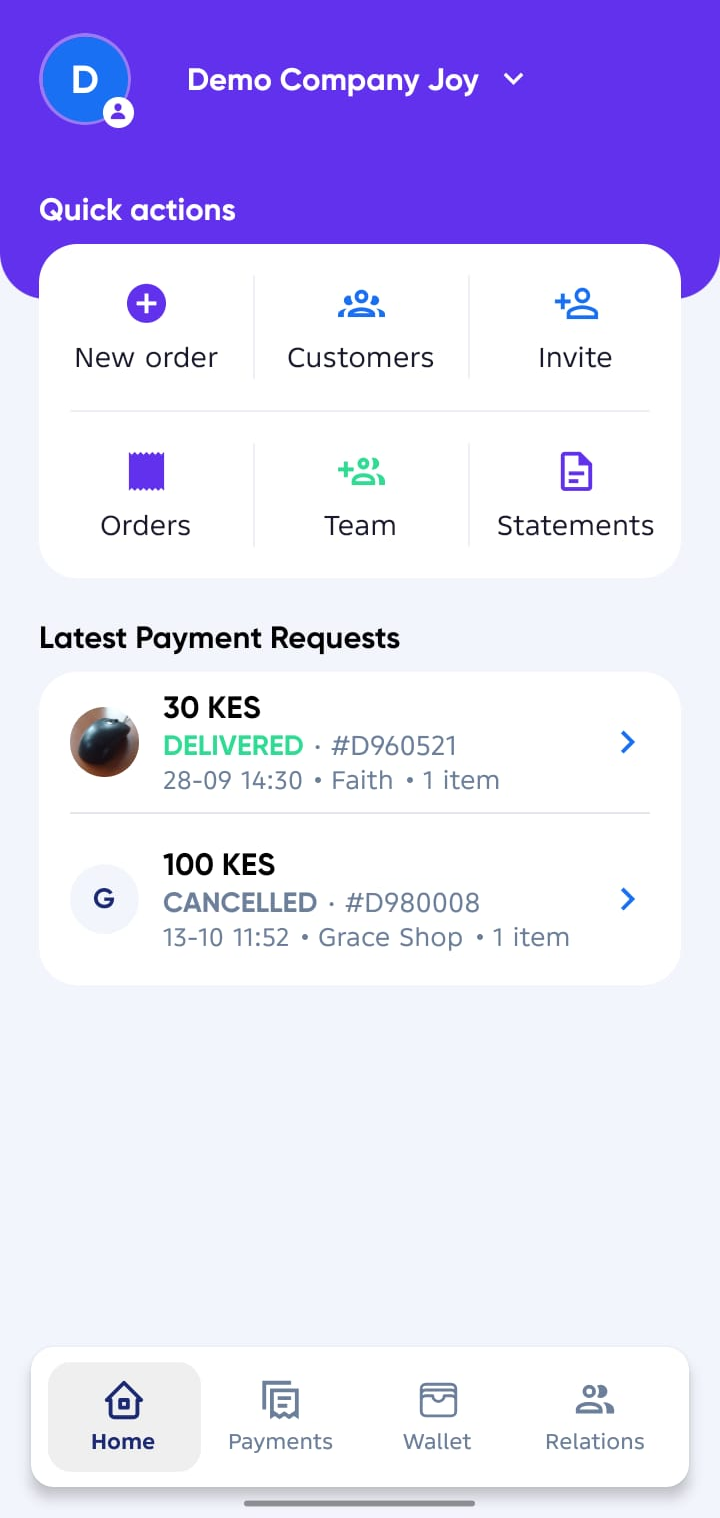
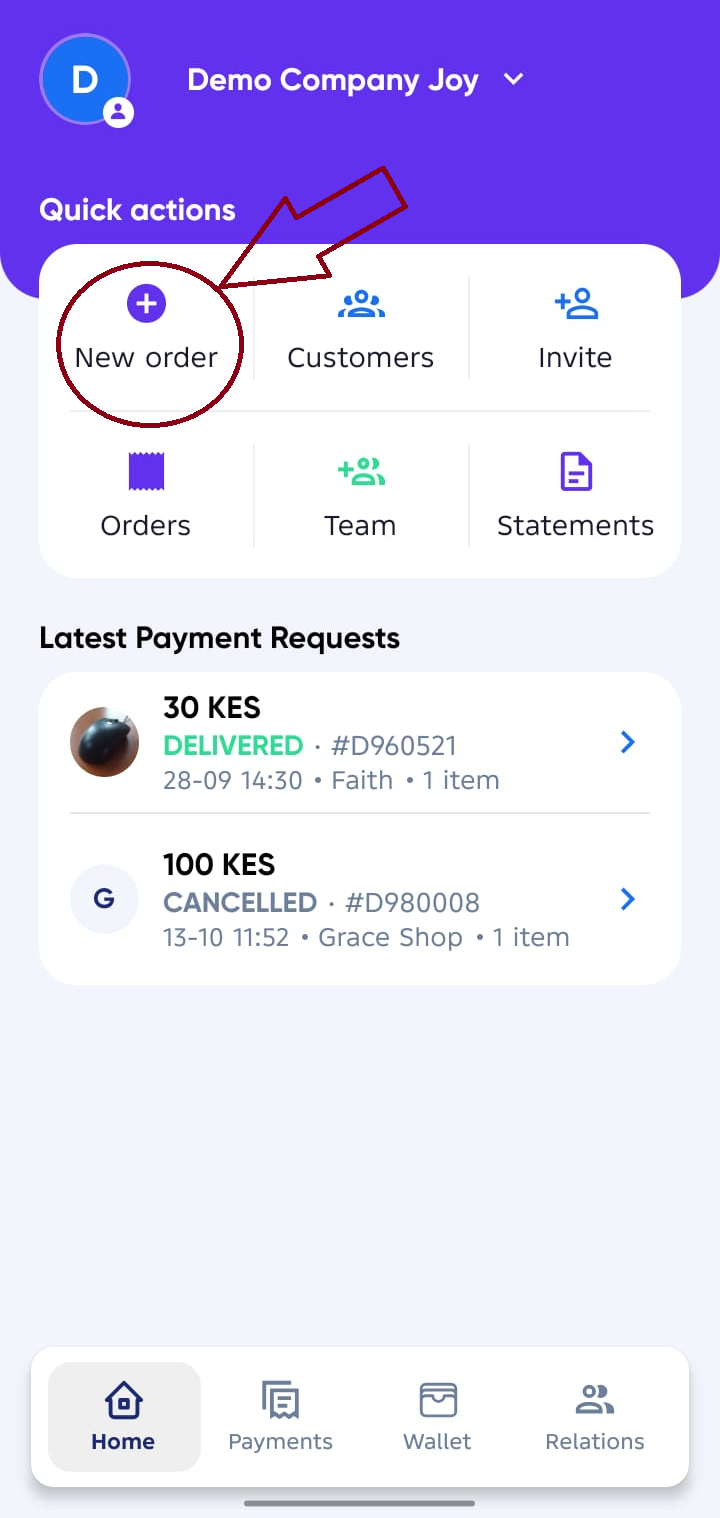
From your Company account Home Screen, under Quick actions tap on New Order.
2. Enter Order Details
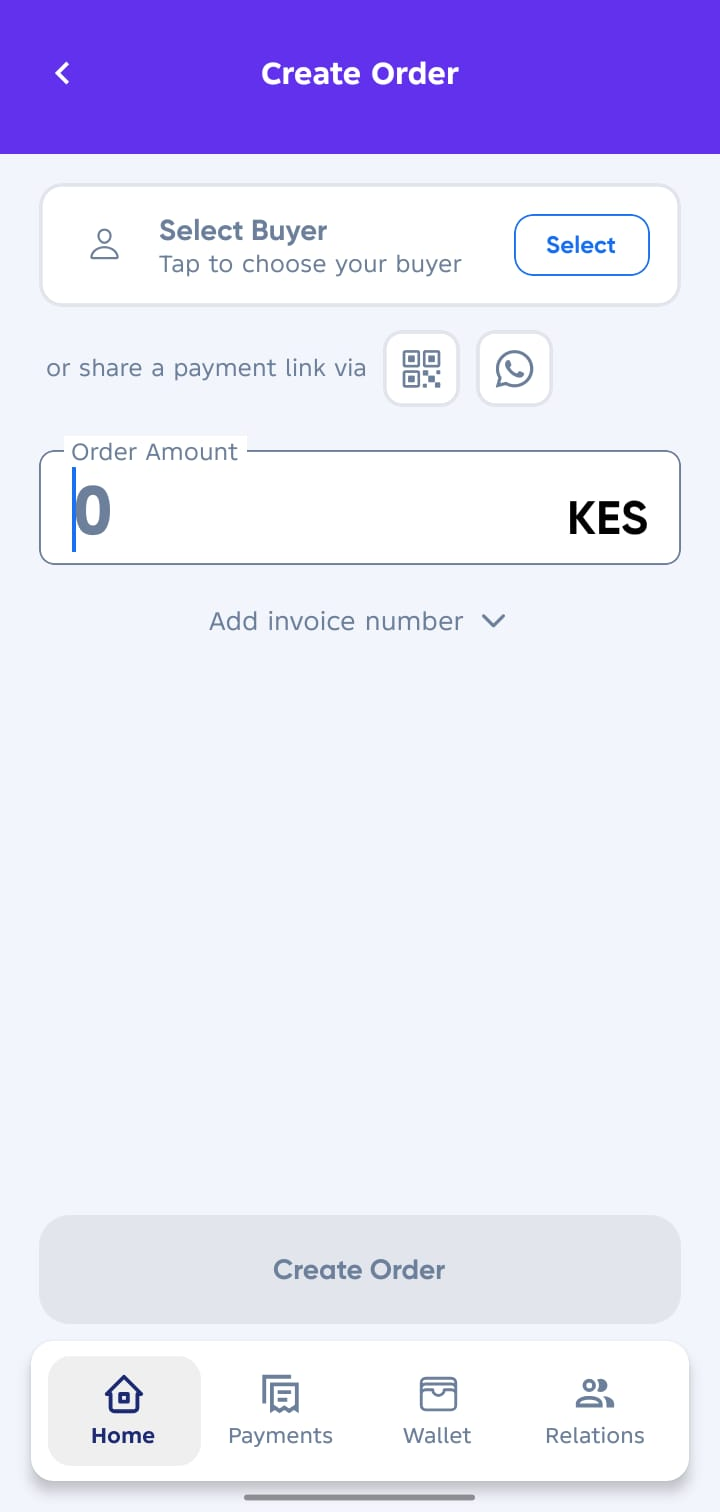
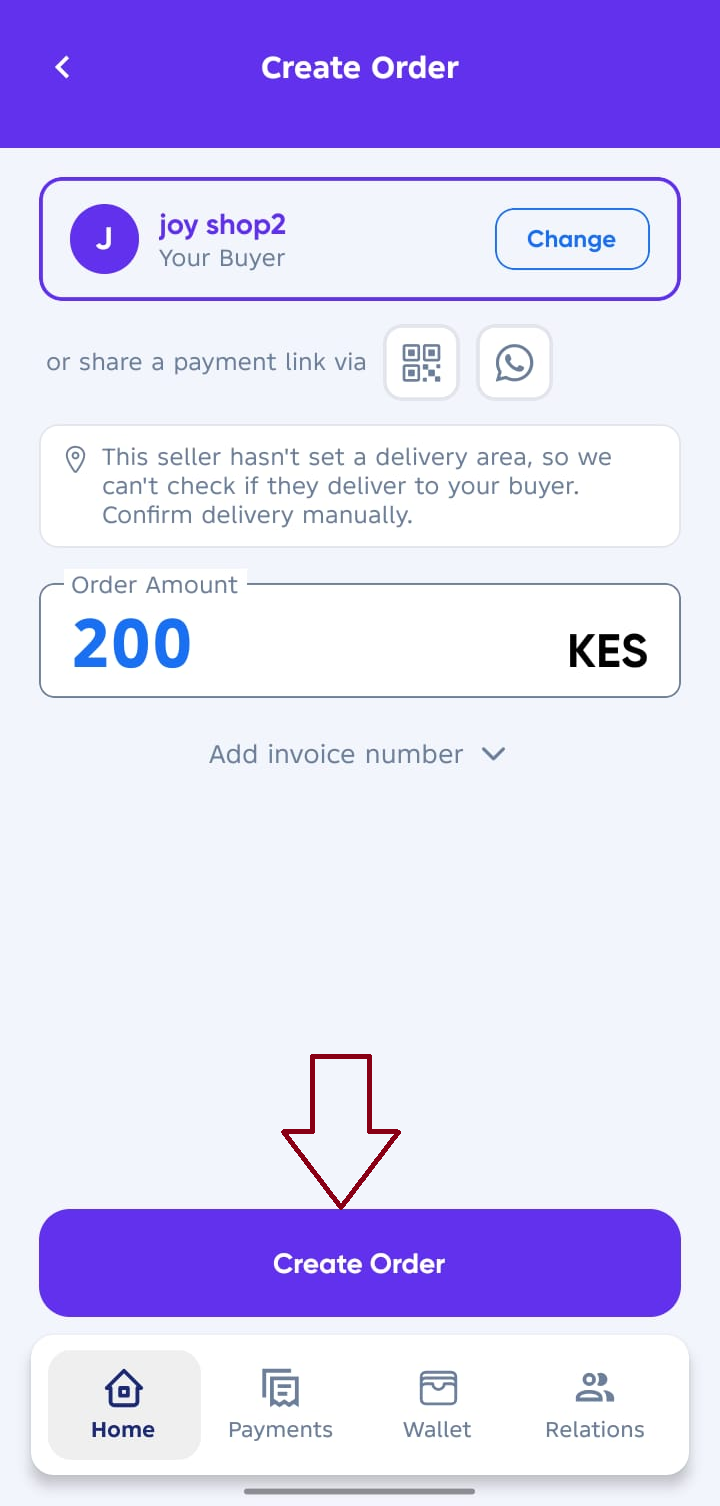
On the order form, complete the following fields:
- Select Buyer → Choose the buyer for the order. (Mandatory)
- Order Amount → The total amount of the order. (Mandatory)
- Invoice Number → Add invoice number if necessary. (optional).
tip
Make sure the buyer’s phone number matches the one linked to their Sevi account.
This ensures the request appears correctly on their end.
3. Send Payment Request
Once all details are filled in:
- Tap
Create Orderand immediately the buyer will get a notification to confirm payment for the order.
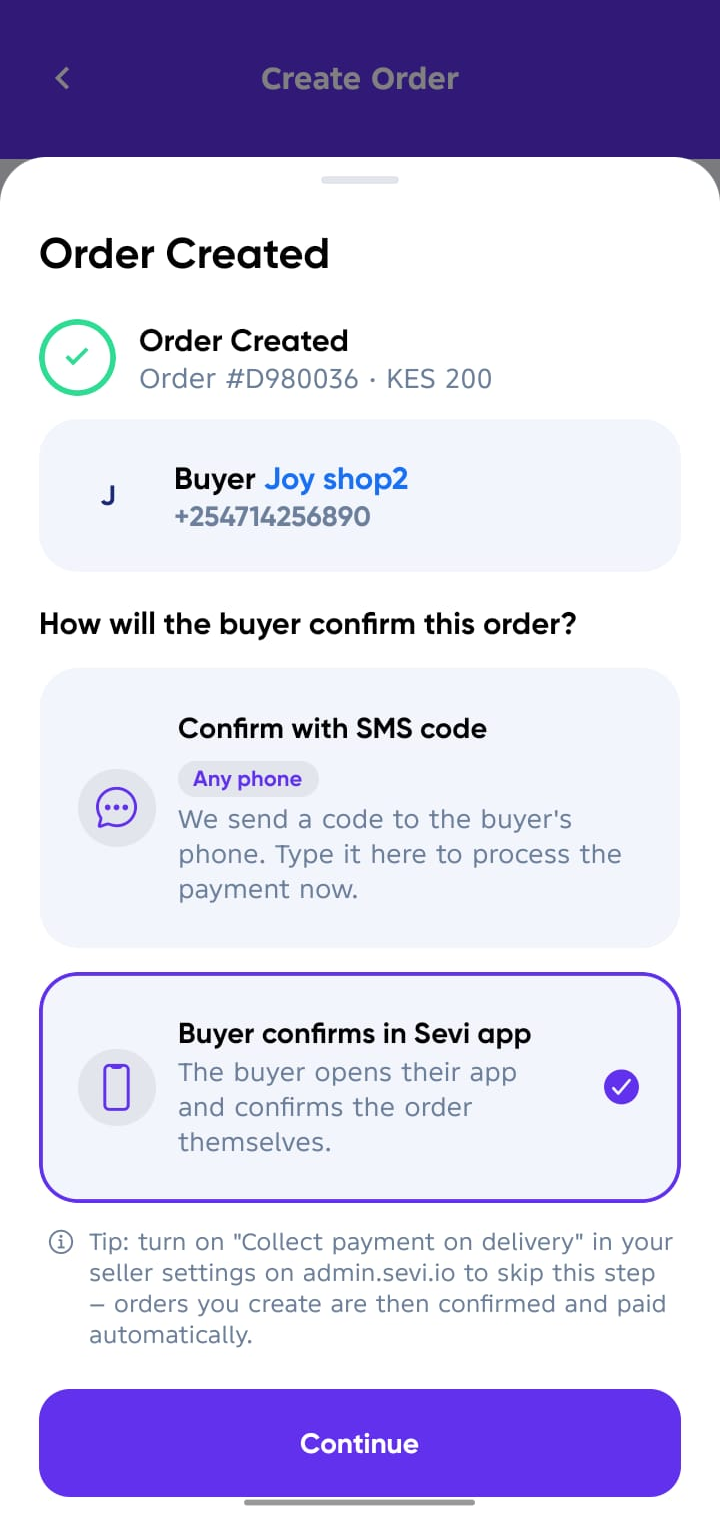
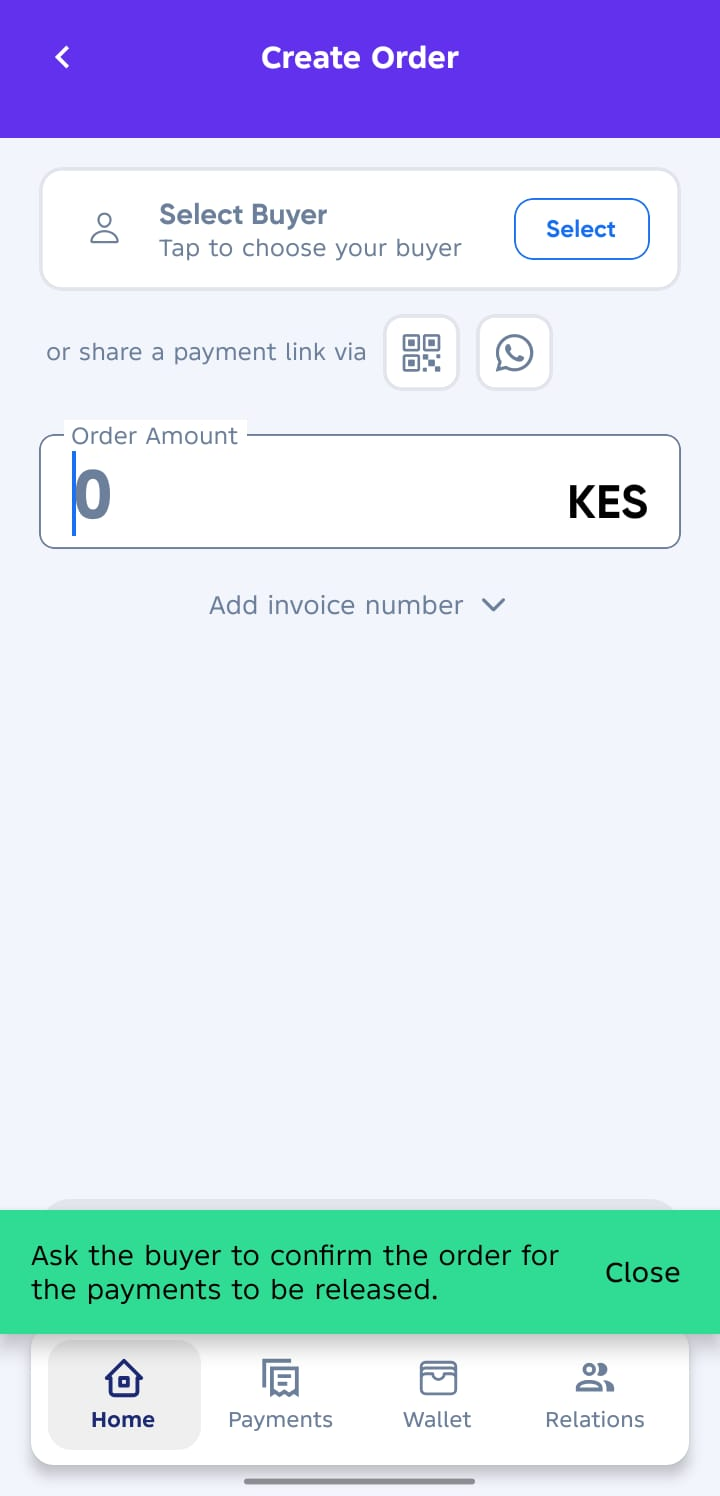
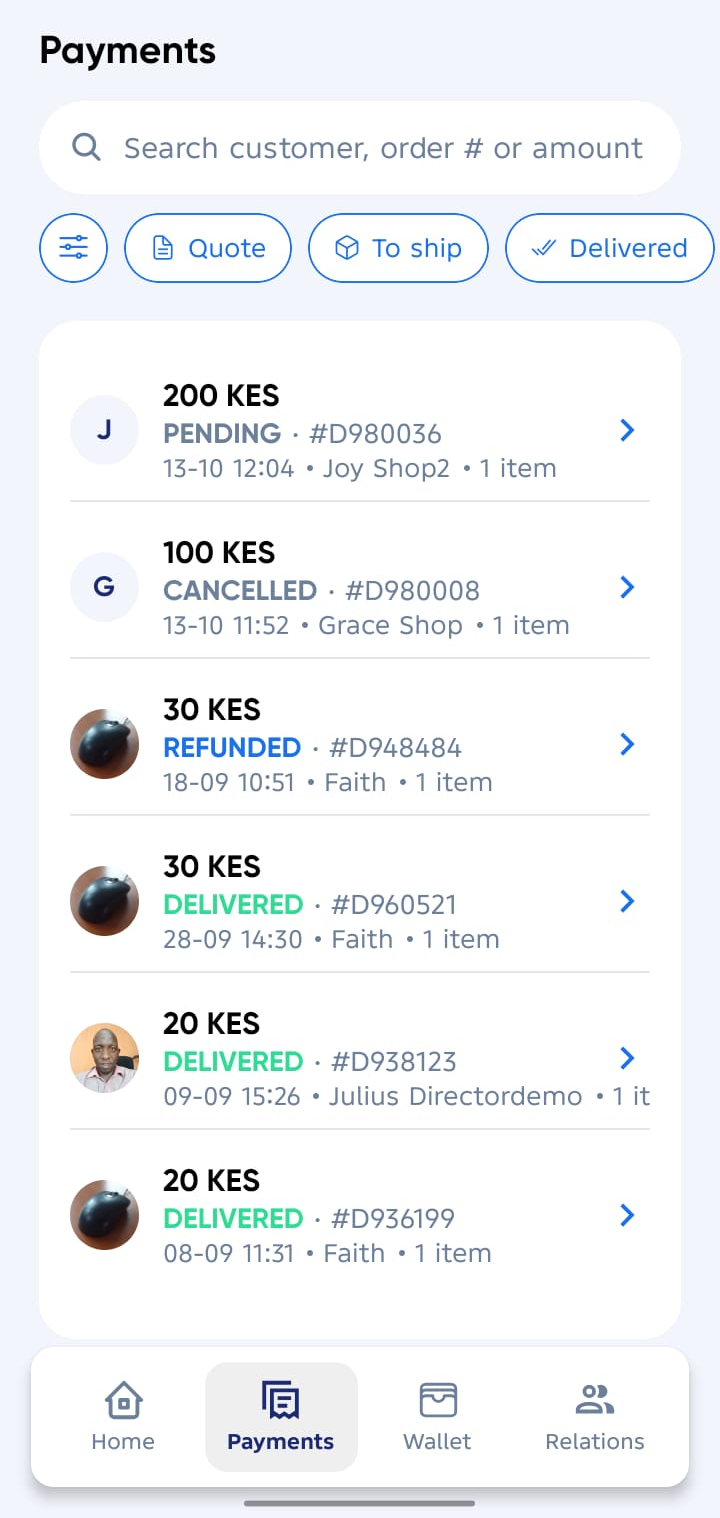
- The payment request will appear in your Payments List with a status of Pending.
4. Payment Confirmation
Once the buyer confirms and selects their payment method:
- If Lipa Na Sevi → Sevi processes the credit and pays you immediately upon buyer confirmation.
- If Split Pay → Sevi processes the available credit limit and the rest is topped up by the buyer either through M-Pesa or Sevi Wallet but in the end you will receive the full order amount.
- If Lipa Direct → payment is completed through M-Pesa instantly or Sevi Wallet.
You can track payment status under Payments.