Dashboard Overview
The Dashboard is the main overview page in the Seller Admin Portal.
It provides a clear summary of your company’s trading activity and performance across agents and customers.
What You’ll See
-
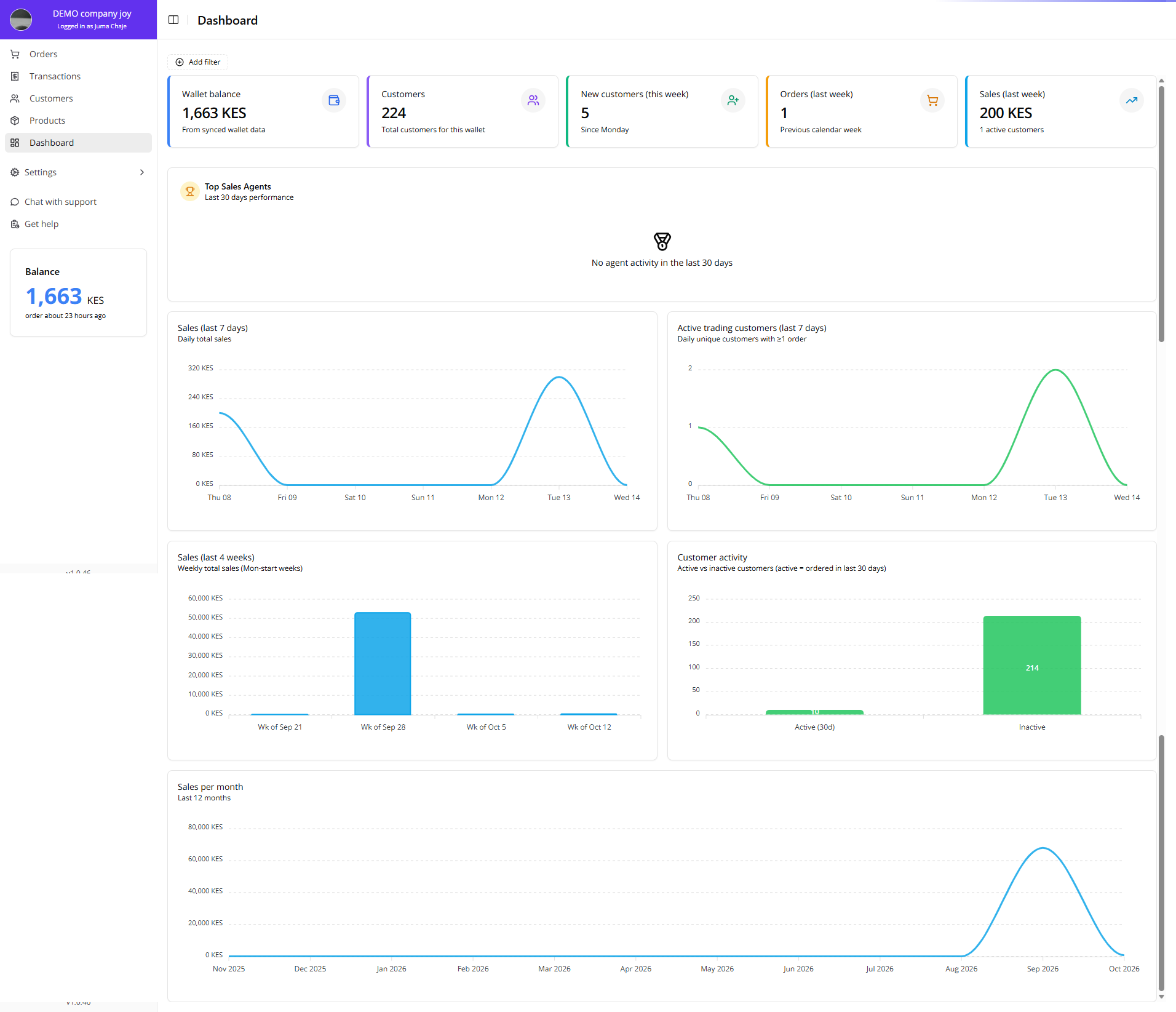
Sales Summary: Quick performance numbers showing your total sales, customers, and orders.
-
Charts & Metrics: Visual data insights for weekly or monthly sales trends.
-
Active Trading Customers: Chart showing all active buyers linked to your company.
Filtering the Dashboard
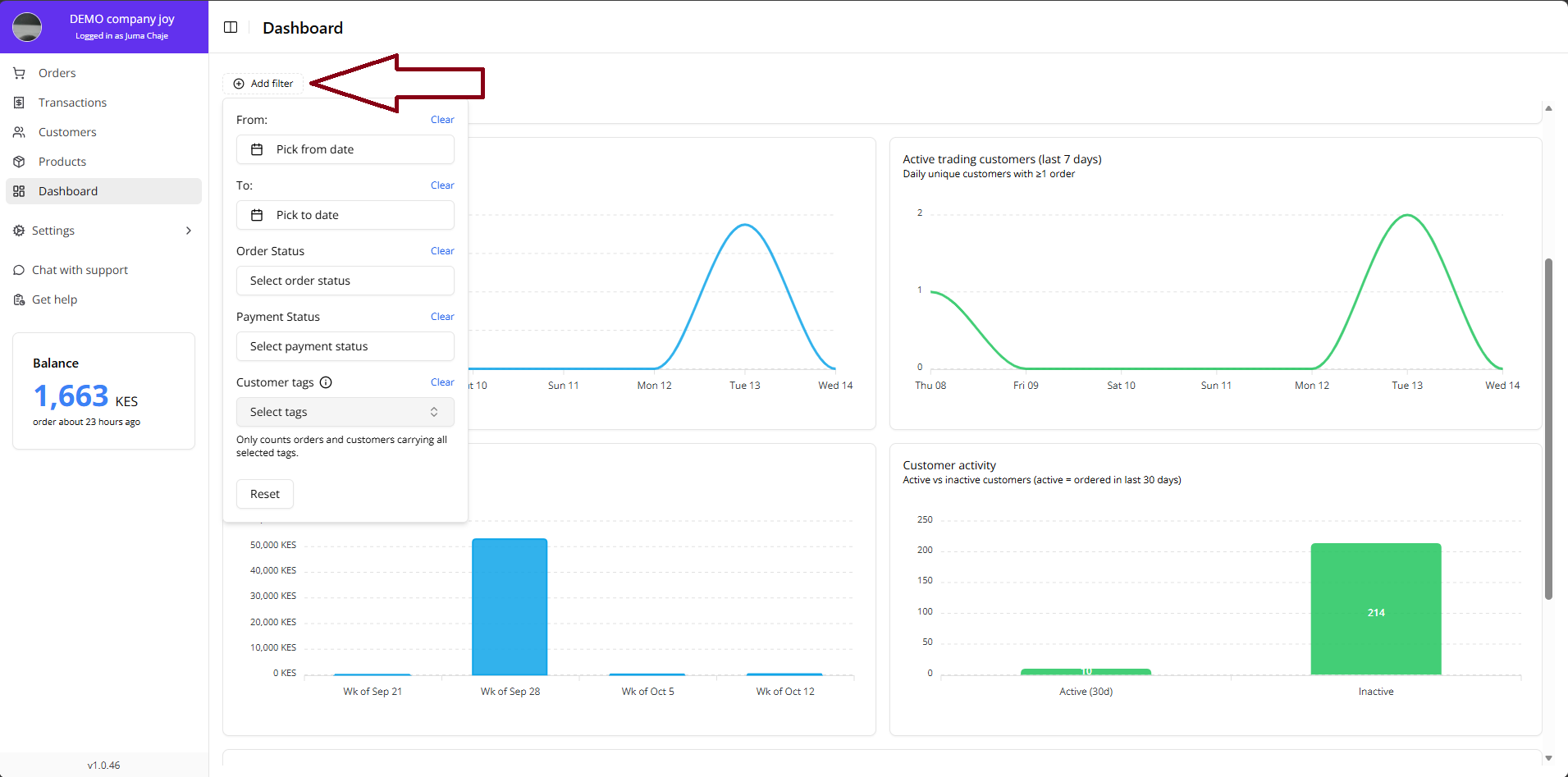
Directly under the page title you will find an Add filter button, which works exactly like the one on the Orders page. Every card and chart on the dashboard follows the filters you set:
- Period (From / To): the Orders and Sales cards and the Top sales agents card switch from their default windows (previous calendar week / last 30 days) to the period you picked. The trend charts keep their fixed windows but only count orders that fall inside the period.
- Order status and Payment status: only orders with the selected statuses are counted.
- Customer tags: only customers carrying all of the selected tags — and only their orders — are counted. This is the same tag filter as on Orders and Transactions and works together with the default customer tags your team members hand out automatically, so you can look at the dashboard for a single rep or route.
Active filters appear as badges next to the button. Remove one with its ×, or use Clear all to return to the unfiltered dashboard. Filters are not saved — reloading the page resets them.
Why It Matters
- Gives you a real-time picture of how your business is performing.
- Helps you track agent and customer engagement at a glance.
- Makes it easy to identify growth areas and manage field performance effectively.
Key Benefits
- Data-driven insights to improve sales and operations.
- Centralized overview for both management and field teams.
- Faster decisions through instant visibility of performance metrics.