Transactions
The Transactions page in the Seller Admin Portal provides a full overview of all financial activities linked to your Sevi account — including payments, withdrawals, and settlements.
This section helps you monitor business performance, export records for reconciliation purposes, and filter transactions by specific dates or criteria.
Overview
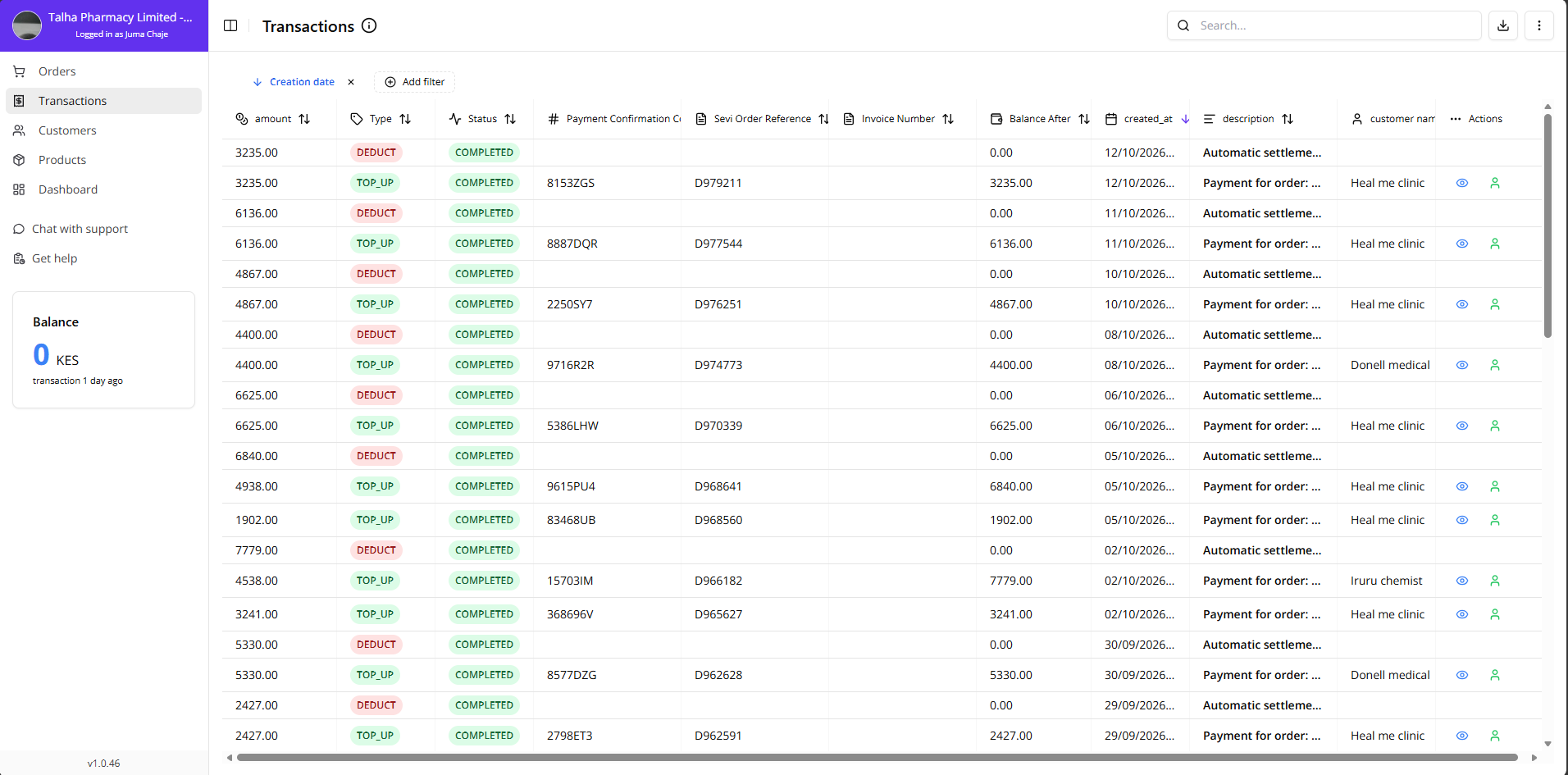
On this page, you can:
- View a list of all completed transactions
- Search by transaction id
- Filter transactions by any column you prefer
- Filter by customer tags via Add filter — shows only transactions belonging to orders of customers carrying all the selected tags (see Users → Finding orders and transactions by tag)
- Export transaction data to Excel for reporting or accounting use
Key Features
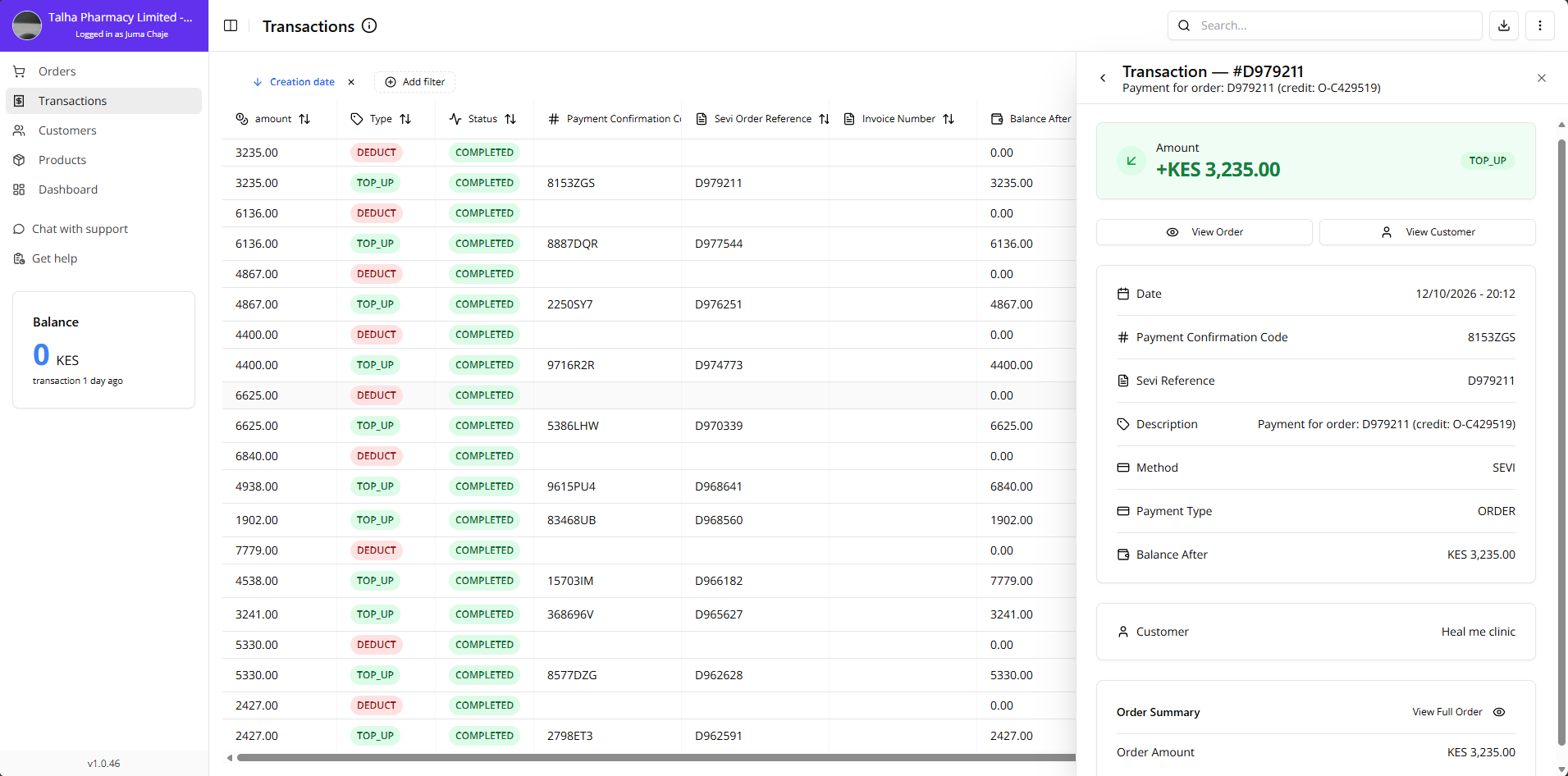
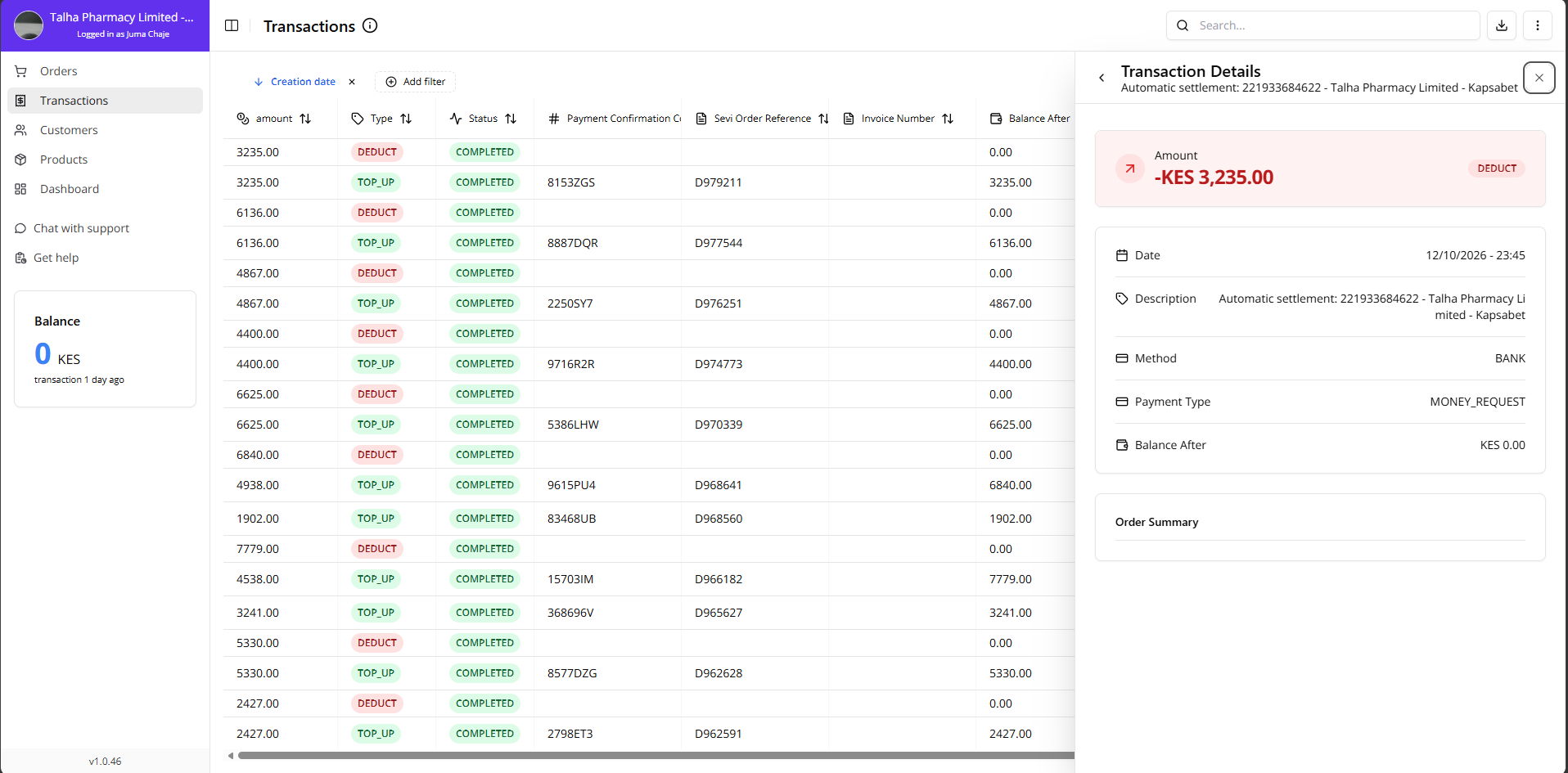
1. View Each Transaction Details
Click on any transaction to view full clear details on it. i.e; Top-up or Deduct, Date and time paid, Payment Code, Customer name etc
This helps you review specific payments efficiently.
2. Export Transactions
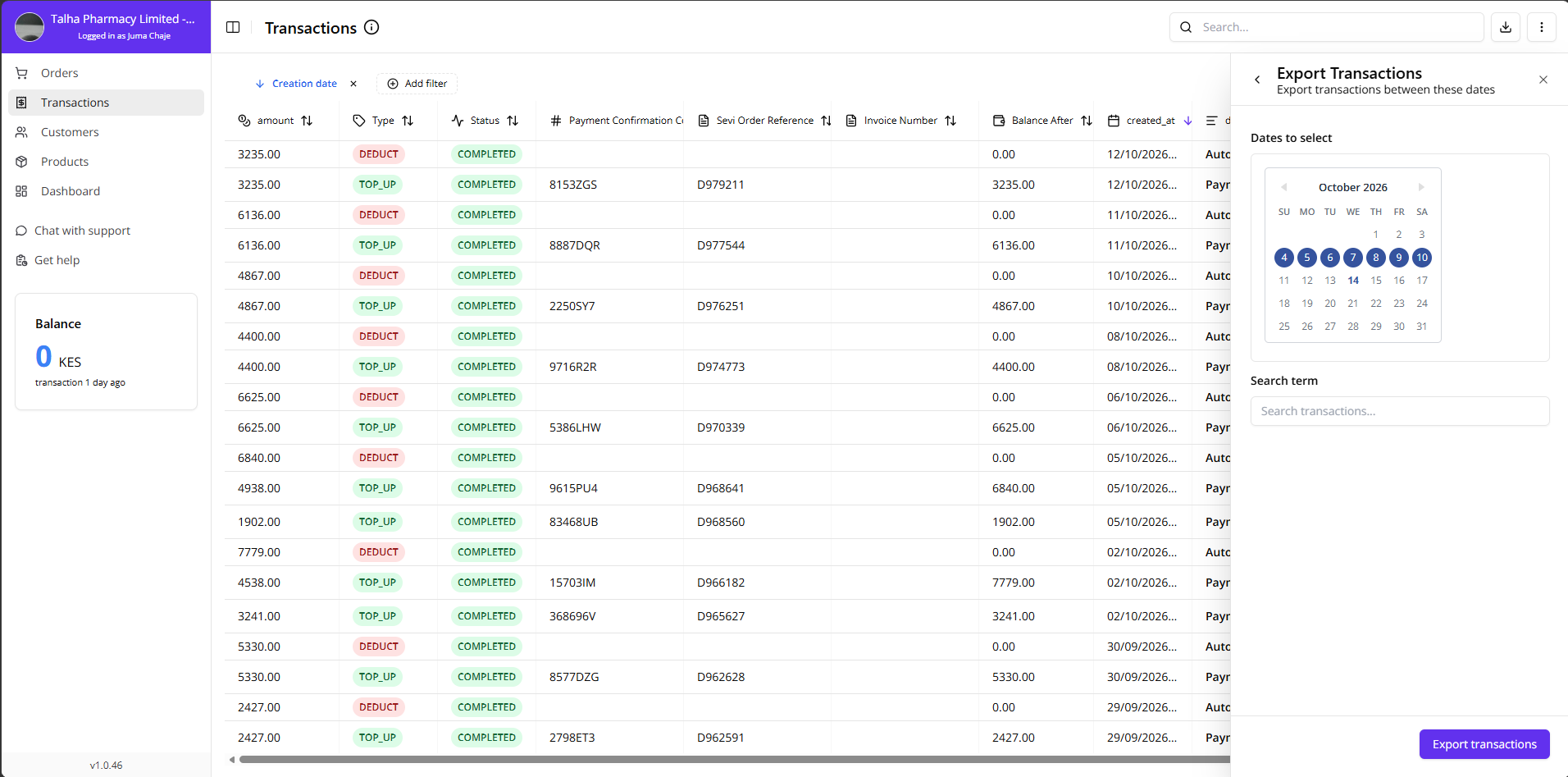
Easily export transaction data for accounting or analysis:
- Click Download Icon at the top-right.
- Select your desired date range (Minimum 3 consecutive dates).
- (Optional) Apply search term filters before exporting.
- Click Export Transactions to download your Excel file.
3. No Transactions Found
If the page shows “No transactions found,” this may mean:
- You haven’t processed any payments yet
- The current filters or search terms don’t match any data
- The selected date range contains no records
Related Features
- Orders
- Customers
The Transactions page gives you full visibility and control over your financial activity — helping you keep track of all movement in and out of your Sevi Seller account with ease.